
When teams start using ClickUp, the first big win is usually better task visibility. Everything’s in one place, projects are organised, and managers finally get to see what everyone’s up to.
Most teams then add ClickUp dashboards so HR and leadership can keep tabs on delivery dates, workloads, and project progress.
Once everything’s in one system and you’ve got dashboards, something even cooler can happen: you can add a ClickUp Super Agent that reads the same data and turns it into easy-to-understand team health signals.
Recently, I designed a ClickUp AI Super Agent for a software development company that was already rocking ClickUp and dashboards. Their HR lead wanted a clearer view of team engagement, workload pressure, and early signs of burnout in the product and engineering teams.
Instead of ditching their dashboards, we layered a ClickUp Super Agent on top. Dashboards still give leadership a detailed view when they want to dive in. The Super Agent keeps an eye on live project data and highlights patterns that might need attention; all in plain language.
This article walks you through how we set up this system.
Step 1: Decide what the ClickUp Super Agent will watch
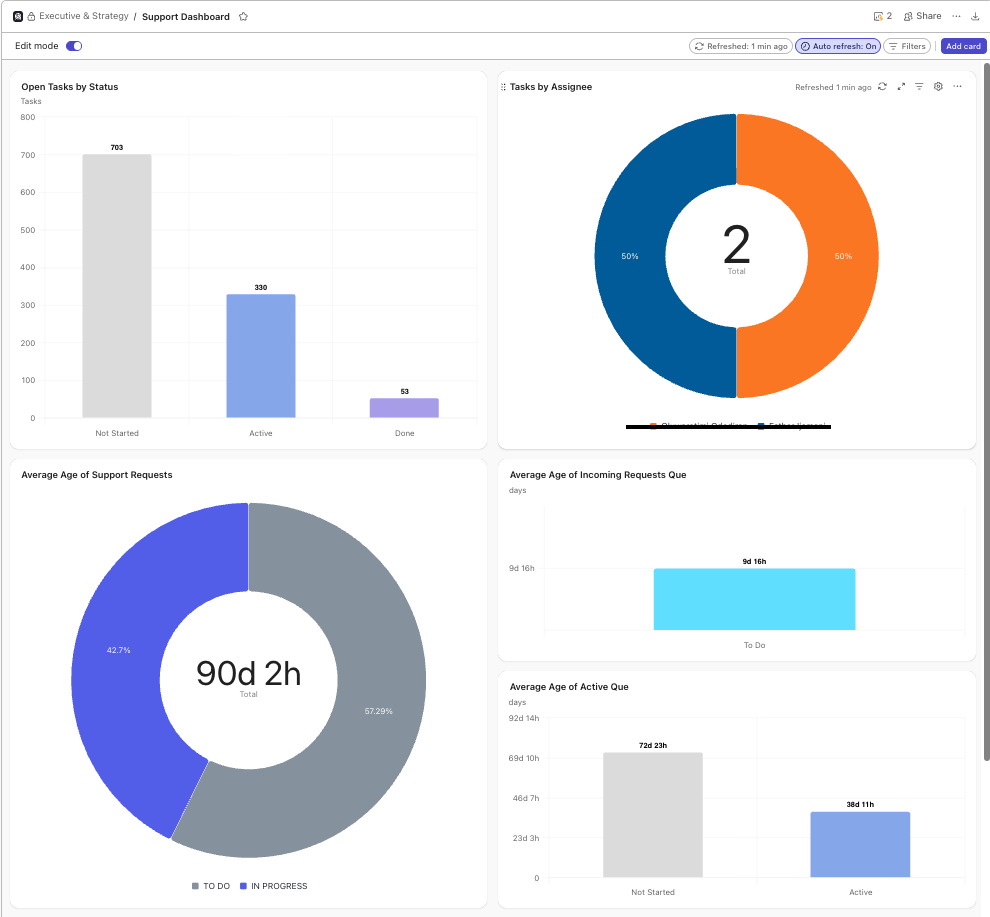
First, we figured out what the ClickUp Super Agent would focus on and how it would work with existing reports.
Our Super Agent keeps an eye on:
- Location: the
Devfolder in the Product & Engineering space, where all the development team’s work happens - People: everyone in the Product & Engineering team (we can list specific users or just refer to the team as a whole)
Next, we nailed down the types of team health signals we care about, like:
- A sudden spike in overdue or blocked tasks
- Consistently long cycle times for certain projects
- Individuals juggling too many active tasks
- Sprints where scope is constantly being added mid-week
The Super Agent’s job is to hang out with your dashboards and proactively point out these patterns.
Step 2: Choose how and when the Super Agent delivers insights
How our ClickUp Super Agent delivers insights
We thought about emailing insights directly to management. But in the end, we decided it’d be more fun to have the ClickUp Super Agent post in a dedicated ClickUp chat channel.
That way:
- HR has one central spot to check out weekly team health updates
- Leadership can peek in whenever they need context, and then jump into dashboards if they want to explore the numbers
- The team can chime in with comments or extra info directly in ClickUp
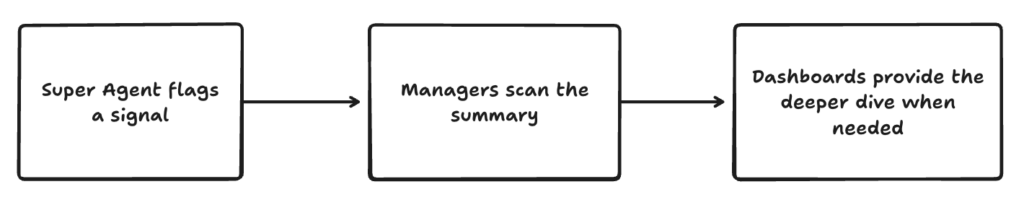
The result is a simple flow:
A cadence that doesn’t overwhelm
We set a chill pace of once per week. A weekly summary:
- Keeps noise low (no one wants daily “AI updates” in their inbox)
- Summarizes the previous week’s activity
- Gives managers time to review signals and chat about improvements with the team early the following week
We got together in a workshop to identify the points that we want our SuperAgent to consider and report on. The team decided that the following points were the most important to them:
- Ensuring that the SuperAgent took a wholistic view of the team
- Commenting on tasks and in threads
- Closing tasks
- Changing statuses
- Repository syncing
When the system becomes quiet around them. This doesn’t mean someone is not working. But it might suggest:
- They are blocked
- They are overwhelmed
- They are working outside the system
- They need support
For HR teams, this signal can prompt supportive check-ins.
Step 3: Let the ClickUp Super Agent builder draft the instructions
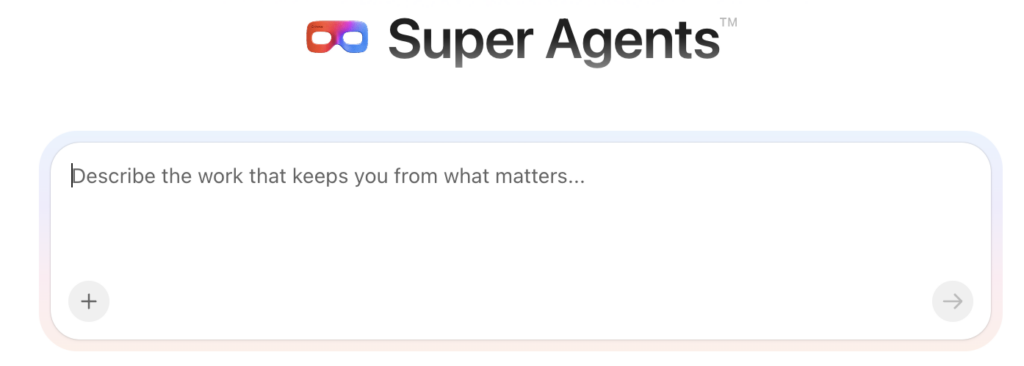
Once we set the basic direction, the ClickUp agent builder whipped up a comprehensive draft of the agent’s operating instructions.
It automatically organized them into sections like:
- Role and Objective – what the Super Agent is responsible for
- Capabilities & Scope – where it’s allowed to look, and what it can do
- Instructions – how it should interpret data and flag patterns
- Edge Cases – how to behave when the data is noisy or incomplete
- Tone and Personality – how the agent should communicate in updates
- Context – any essential background about the team or workflows
The draft was already detailed and aligned with our intent, so we didn’t need heavy edits. From there, we moved on to configuring how the agent is triggered.
Step 4: Teach the ClickUp Super Agent which signals really matter
The agent builder gives you a solid first draft of the Super Agent’s instructions. The next step is refining those instructions with the people who’ll actually use the insights.
Together with the HR lead and Head of Engineering, we:
- Prioritized signals – we kept the list focused on a small set of patterns that genuinely change behavior, such as:
- Sprints where scope is repeatedly added after kick-off
- Individuals carrying significantly more active work than their peers
- High rates of work bouncing between “In Progress” and “Blocked”
- Set practical thresholds – for example, what counts as a “spike” in overdue tasks for this specific team, and how many weeks in a row something needs to happen before it’s worth flagging.
- Linked each signal to a suggested action – every team health signal includes a short “so what?” line that points HR or leadership to a next step, such as:
- “Review sprint planning scope with the product owner.”
- “Check in with this person’s manager about workload and priorities.”
- “Look at how work is handed over between teams on these projects.”
Dashboards are still there in the background to explore the numbers. The ClickUp Super Agent’s job is to sit alongside them and say: “Here are the three things you should look at this week, and why they matter.”
Step 5: Test the ClickUp Super Agent against real weeks of data
Before rolling anything out to the wider leadership team, we ran the Super Agent in a short pilot.
For the first few weeks, the agent:
- Posted its weekly team health signals into a private ClickUp chat channel for the HR lead and Head of Engineering.
- Included direct links to the relevant ClickUp dashboards and views so they could quickly cross-check the signals against live data.
- Logged which signals were genuinely useful and which felt like noise.
Each week, we made small adjustments:
- Tightening thresholds where the agent was over-reporting minor fluctuations.
- Dropping signals that didn’t lead to meaningful conversations or decisions.
- Adding clarifying language so the summaries felt more human and less like a raw data dump.
By the end of the pilot, we had a balanced set of team health signals that the group trusted and could validate quickly against their existing dashboards.
Step 6: Roll out the Super Agent and keep evolving it
Once the pilot was stable, we widened access to include HR, the leadership team, and a small group of managers.
The final setup looks like this:
- Weekly ClickUp chat summary: every Monday morning, the ClickUp Super Agent posts a concise digest of team health signals for the previous week.
- Direct links to dashboards: each signal links to the relevant ClickUp dashboards so leaders can dive into the numbers if something looks off.
- Clear narrative: the agent writes: “Over the last 2 weeks, overdue work for the Dev squad has doubled, mainly in Project X. Consider revisiting scope and priorities for the next sprint.”
We also built in a simple feedback loop:
- HR and managers can comment directly on the agent’s messages when something needs extra context.
- If a signal consistently isn’t useful, we update the Super Agent’s instructions to remove or adjust it.
- As the team’s workflow evolves, we can add new signals (for example, around incident management or cross-team collaboration).
The goal is not a “set and forget” AI. It’s a living Super Agent that grows alongside the team’s ClickUp setup and continues to work with existing dashboards.
The impact: from raw data to practical team health conversations
After rolling out this ClickUp AI Super Agent alongside their dashboards, the company saw a few important shifts:
- HR had more contextual insights. They start from a short, narrative-style summary of what deserves attention.
- Managers caught early signs of overload sooner. When the agent repeatedly flagged individuals with too many active tasks, it prompted re-prioritization conversations before burnout took hold.
- Leadership conversations became more focused. Weekly check-ins shifted from “How’s the team doing?” to “We’ve seen three sprints in a row with scope creep—what’s driving that?”
Dashboards remain the place for deep dives and detailed reporting. The ClickUp Super Agent adds a layer of context, turning those dashboards into a richer, more human view of how the engineering team is really doing.
Thinking about a ClickUp Super Agent for your own team?
If your HR and leadership team already rely on ClickUp dashboards and would benefit from a contextual read on team health, a Super Agent can help:
- Translate dashboard data into plain‑language team health signals
- Highlight patterns around workload, engagement, and delivery risks
- Point people back to the right ClickUp dashboards and views when a deeper dive is needed
If you’d like to explore what a ClickUp Super Agent could look like for your team, get in touch. We’ll map your current ClickUp setup, identify the team health signals that matter most, and design a Super Agent that layers on top of your existing dashboards, so you get better HR visibility.