
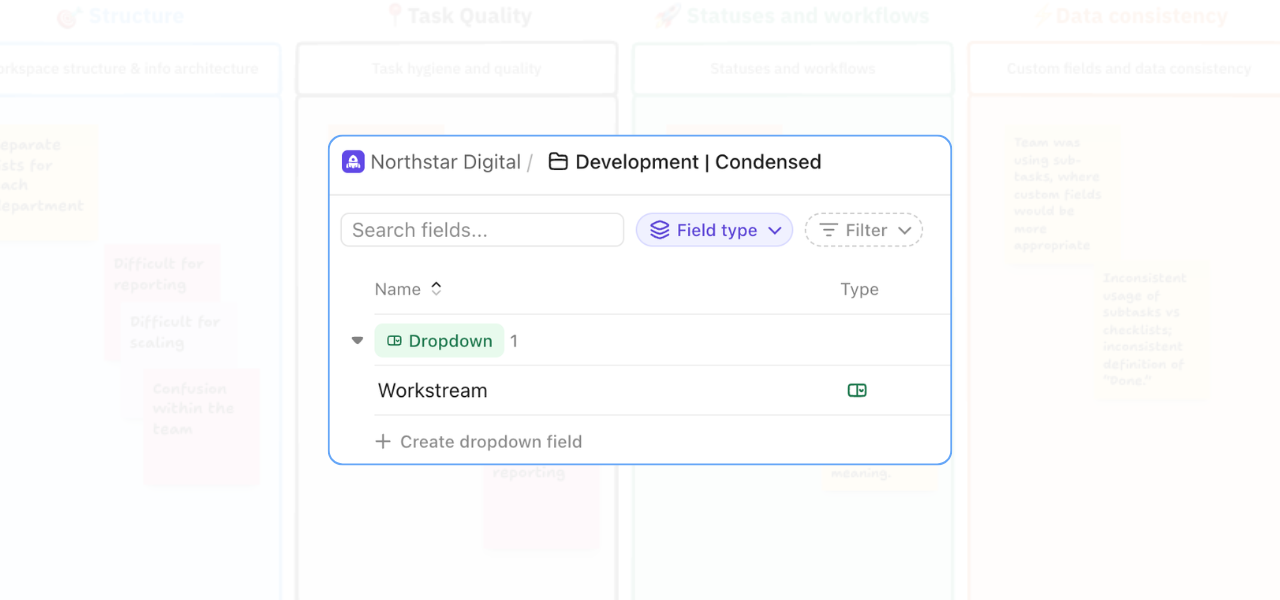
One of the most common problems that comes up in workspace audits is teams relying on extra lists or subtasks to separate work that would be better handled with custom fields.
At first, that can seem logical. But over time, it usually creates friction. Reporting becomes harder. Visibility gets weaker. And the team has to work much harder just to understand what belongs where.
In this video, I walk through one of the recommendations from a real workspace audit and show how we improved clarity by replacing unnecessary structure with a custom field. The goal was simple: make the workspace easier to report on and easier for the team to use.
Why custom fields can improve data consistency in ClickUp
Custom fields are often a better fit than extra subtasks or separate lists when you need to categorise work consistently.
In this example, the recommendation was to stop using task structure to represent work streams and instead create a dropdown custom field called Work Stream. That meant each task could be clearly labelled using options such as:
- App
- Doc
- AI
- UX
- Front End
- DB
This gave the team a more consistent way to organise work without creating more layers in the workspace.
Instead of using the structure itself to do all the sorting, the structure could stay simpler while the custom field handled categorisation. That is often a much better approach for reporting and day-to-day visibility.
What changed in the setup
In the walkthrough, I show how we:
- created the Work Stream dropdown field
- added the right work stream options
- bulk-updated tasks with the correct values
- used folder-level views to speed up the update process
- consolidated work into one central list
This is where the value of the change becomes much clearer. Once the work stream field is in place, it becomes much easier to bring related work into one list without losing visibility. You still know which stream each task belongs to, but you no longer need separate lists to maintain that distinction.
That gives the team one cleaner place to work from.
Why custom fields in ClickUp improves reporting
Better data structure leads to better reporting. When work streams are captured in a consistent custom field, you can filter, group, and report on them much more easily.
That means you can:
- see work grouped by stream in one place
- build cleaner dashboards
- reduce manual sorting
- create views that are easier for the team to understand
- improve confidence in the data inside the workspace
This matters because, if tasks are structured inconsistently, or if work is spread out in ways that make comparison difficult, dashboards and views can only do so much. A cleaner custom field strategy usually fixes the problem further upstream.
Why this also improves clarity for the team
The reporting benefit is important, but the team benefit is just as valuable.
When work is easier to categorise and easier to find, people spend less time second-guessing the setup. They know where work lives. They know how it is labelled.
And they can trust that filtered views and grouped reports will show them what they need. That reduces friction in day-to-day delivery. It also makes the workspace easier to scale as more work is added.
In this example, once everything was consolidated into one list, the setup became much easier to view and manage. The next step was then to build role-specific views on top of that cleaner structure.
When to use a custom fields in ClickUp instead of more task structure
A good rule of thumb is this: If you are using extra lists or subtasks mainly to label or categorise work, there is a strong chance a custom field would do that job better. Custom fields are especially useful when you need:
- consistent categorisation
- easier reporting
- clearer filtering
- one central source of truth
- less structural clutter
That does not mean every list should be consolidated. But it does mean it is worth questioning whether the current structure is helping the team work more clearly — or just making the workspace more complicated than it needs to be.
Watch the video
In the full video, I show the exact process of creating the custom field, applying it, and using it to support a cleaner ClickUp setup.
If your workspace is harder to report on than it should be, or your team is relying on too much structure just to separate work, this is a useful example of what to simplify first.
Watch the video here
And if you want a practical outside view on how to improve your ClickUp setup, enquire about a workflow review.
Related Content
Walk Through a ClickUp Workspace Audit with Me
Improve Clarity in ClickUp: 2 Practical Ways to Reduce Workspace Confusion
How to Improve ClickUp Task Hygiene by Simplifying Nested Subtasks
Role-Specific Views in ClickUp: How to Reduce Workspace Clutter
How to Build a ClickUp Dashboard for Better Project Visibility
How to Manage Private and Public Docs in ClickUp Without Creating a Messy Workspace