
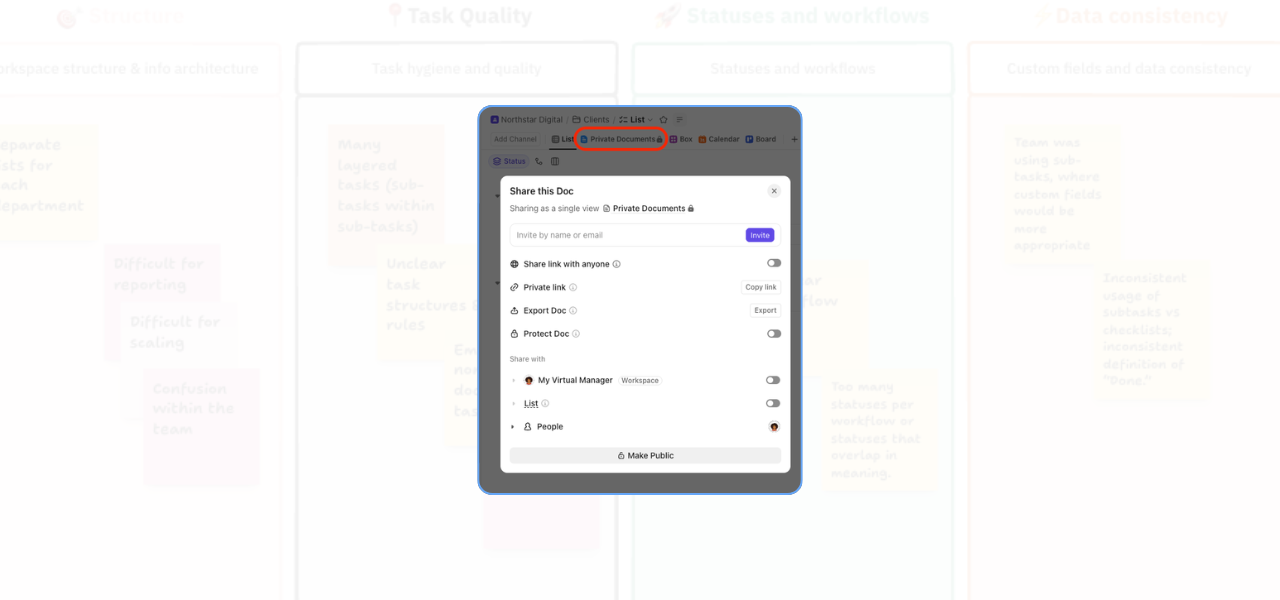
One common issue I spot in workspace audits is unclear document privacy. Sensitive notes are often visible to far more people than they need to be, while useful resources that should be easy to share aren’t set up properly at all.
In this video, I walk through a simple way to manage private and public docs in ClickUp so your workspace feels more secure, more organised, and much easier to use.
What this video covers
Inside the walkthrough, I show you how to:
- Make an existing document private
- Share a document with specific people
- Create a public-facing document to share externally
- Understand the limits of public sharing in ClickUp
- Structure public information using a main doc and subpages
This is a practical setup that works well if you need to keep internal documentation protected while still making selected resources available to clients, collaborators, or the public.
Why ClickUp Document Security matters
When privacy settings aren’t thought through properly, ClickUp can quickly start to feel chaotic. You end up with:
- Sensitive documentation visible too widely
- Confusion about what clients or team members can access
- Public resources living in the wrong place
- Extra admin every time someone needs access to something
A cleaner permissions setup solves a lot of that. It gives your team clearer boundaries, reduces the risk of oversharing, and makes it easier to build a workspace people can actually trust.
A simple rule to remember
In ClickUp, you can’t make an entire space, folder, or list public in the way many people expect. So if you want to share something externally, the better option is usually to create a public doc and organise your public-facing content inside it. That gives you much more control over what stays private and what gets shared.
Watch the video
If you’re currently reviewing your workspace setup, this video will help you make much better decisions around document privacy and sharing. Whether you’re managing internal processes, client resources, or a simple knowledge base, getting these settings right makes a real difference.
And if your ClickUp workspace needs a wider tidy-up, that’s exactly the kind of thing I help with, from audits through to practical implementation.
Need help improving your ClickUp sharing permissions?
If you know your workspace isn’t structured as cleanly as it could be, or you’re not confident your permissions are set up properly, feel free to get in touch.
Sometimes a few thoughtful changes are all it takes to make ClickUp feel far more manageable.
Related Content
Walk Through a ClickUp Workspace Audit with Me
Improve Clarity in ClickUp: 2 Practical Ways to Reduce Workspace Confusion
How to Improve ClickUp Task Hygiene by Simplifying Nested Subtasks
How to Use Custom Fields in ClickUp to Improve Data Consistency and Reporting
Role-Specific Views in ClickUp: How to Reduce Workspace Clutter
How to Build a ClickUp Dashboard for Better Project Visibility